Open the app or web application and sign in with your account.
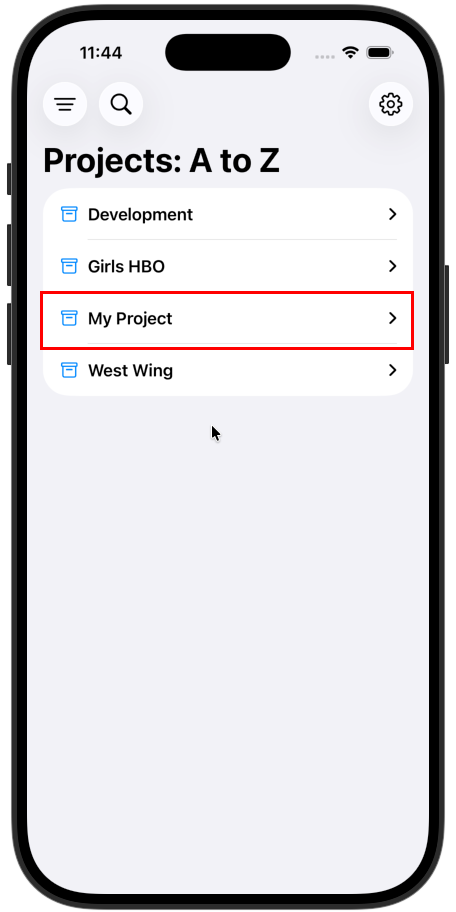
Your first time logging in, you’ll see your first project: My Project. This is the default project that is all yours! Any folders you create in this project, and any screenplays you import will only be accessible to you.
You might see some other projects— those are Group Projects that are shared with you because you’re part of a group. Feels pretty good right? Any screenplay you put into a Group Folder will be shared with everyone in that group. Only Admins can create new Projects or add users to groups.
You don’t want a bunch of scripts thrown willy nilly into “My Project”! You want them neatly organized in carefully thought out folders. So let’s start the Maria Kondo way and find joy in naming our first Folder. Folders can be used to organize episodes, movie projects, and more.
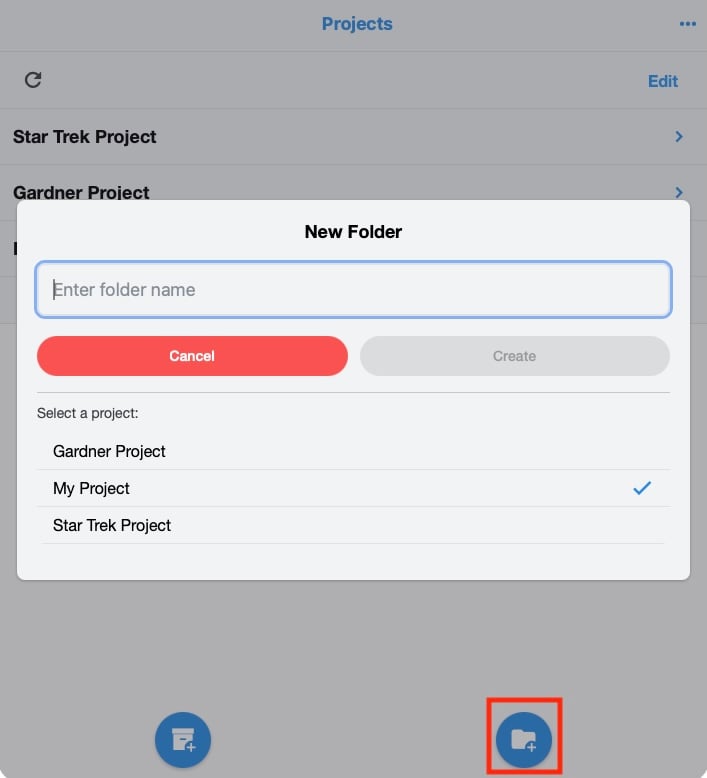
Tap and hold on “My Project” to add a Folder.
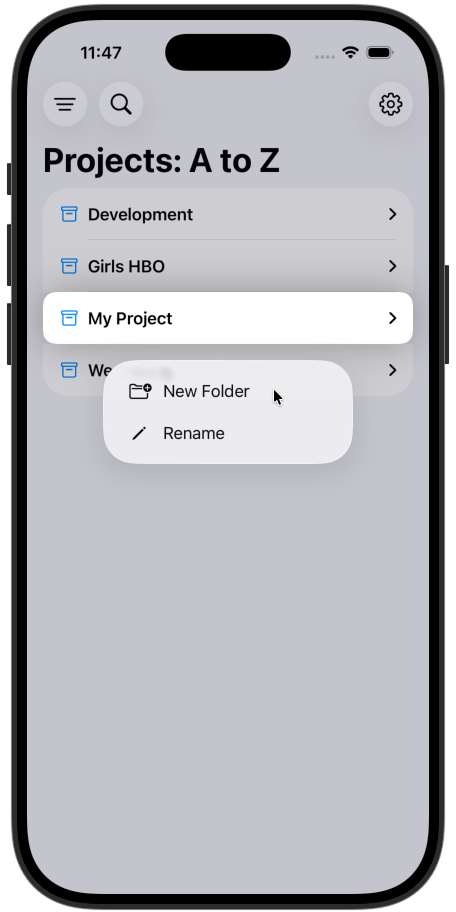
Click the Folder+ button to add a Folder.
Tap the + Button
Select a screenplay pdf from your phone
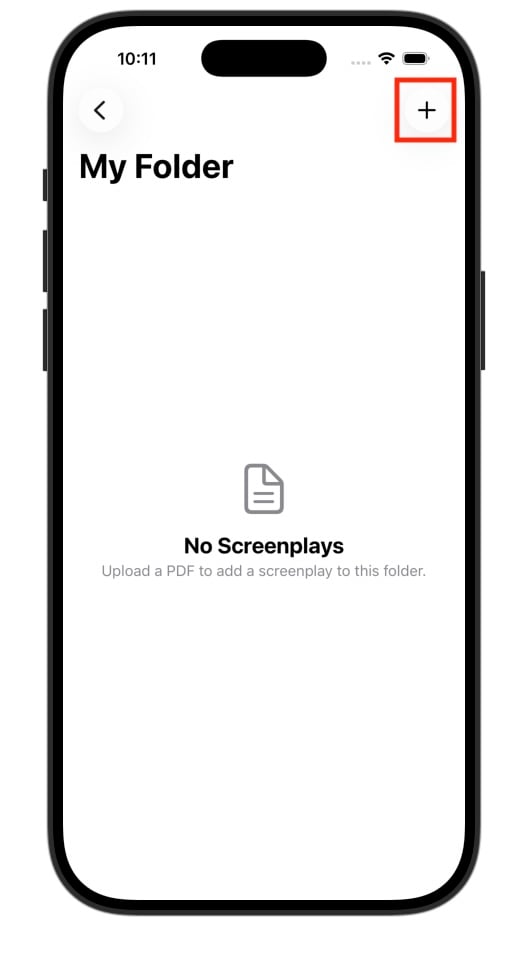
Open a Folder by clicking on it.
Click Screenplay+ button a and select your PDF file

All good things take time. For Quickture Reader, a typical feature screenplay could take 10-20 minutes to process. So make that pour-over, or catch up on your insta. The dude abides.
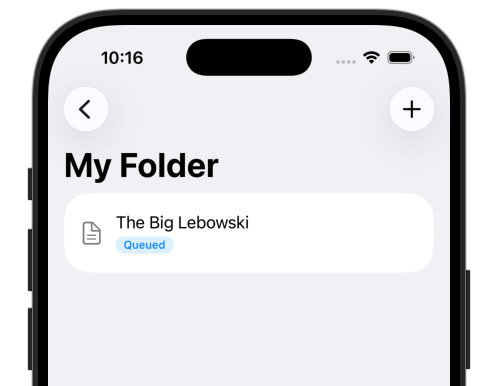
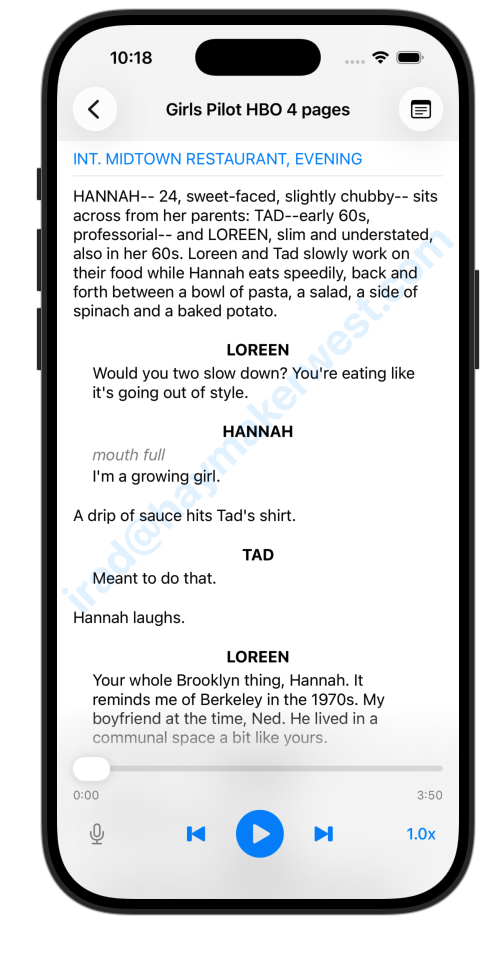
Tap the screenplay to open the player. Hit the play button, and you’re off! Mess with the controls and the bottom. Skip around. And read up about adding notes! This is just the beginning.
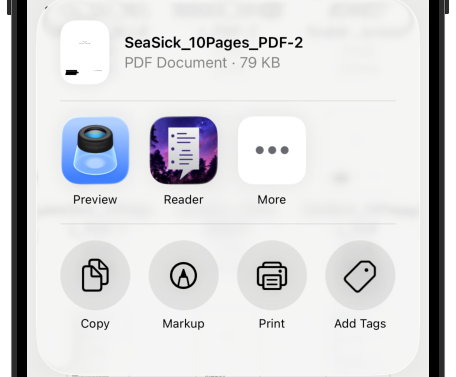
In iOS, if you tap an hold on a file in any app, you’ll have access to the Share button. This allows you to share a file with other apps, including Quickture Reader! This is a fast an easy way to get your script into Quickture Reader.
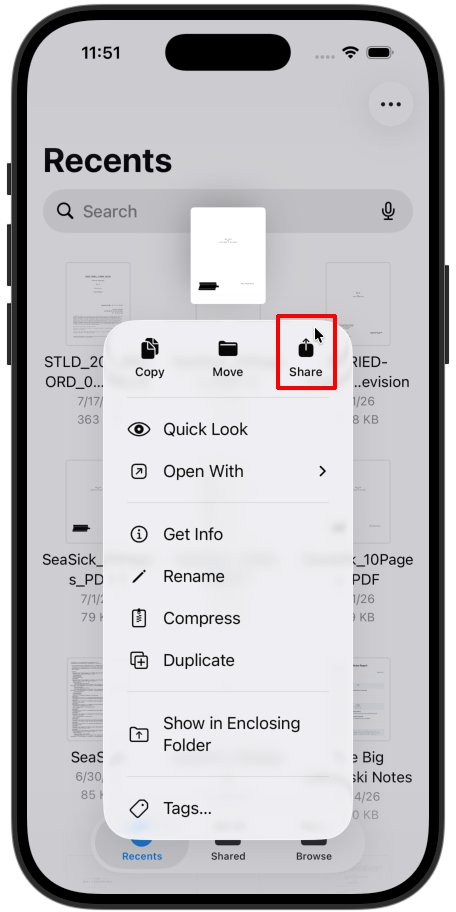
Tap Share and select the Quickture Reader icon from the list of icons. Quickture Reader will open and you can pick where you want to import your script.