When you upload a script, the system analyzes each character's dialogue to understand who they are – their personality, how they speak, and any clues about age, gender, or accent. It then suggests voices from a library of 35+ professional voice actors optimized for dialogue.
The suggestions are usually okay, but you can always change them and make the reading better!
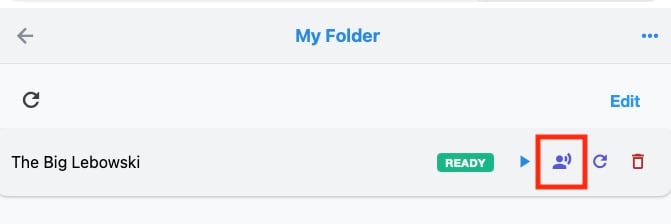
In the Web app, click the talking person icon to change voices for a screenplay.
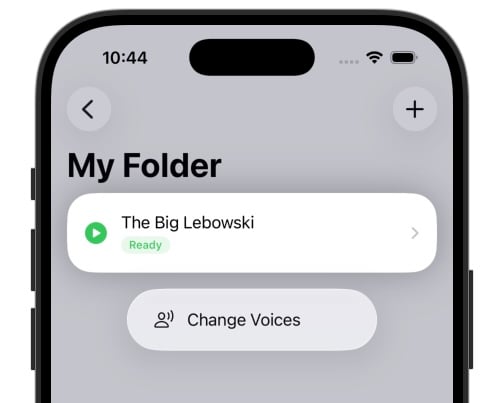
In the iPhone app, tap and hold on a screenplay to open up the Change Voices option.
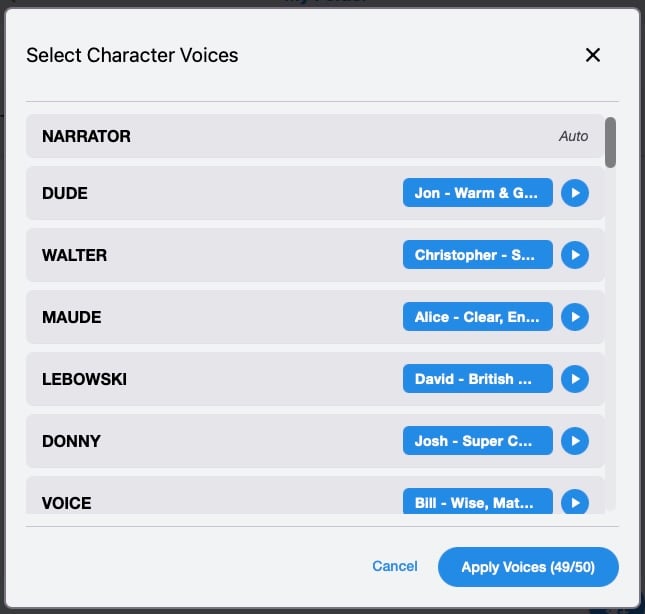
In the Select Character Voices menu you can see what voices are currently assigned to each character in the script, and update them. You can:
Tap or click a character name to browse the voice options.
Tap or click the play icon to hear a voice sample.
Filter voices by gender, age, or accent if you're looking for something specific
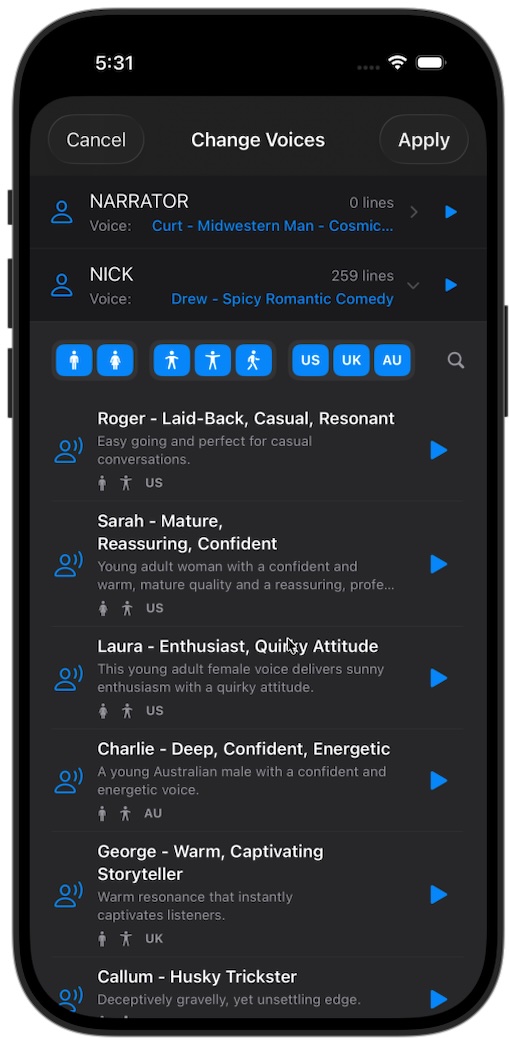
Scene descriptions (action lines, slug lines) are read by a dedicated Narrator voice. You can change the Narrator voice just like any character voice in the Voice Selection screen.
When you select voices for characters, those selections are saved at the project level. If you upload another script in the same project with the same characters, your voice choices carry over automatically.
If you manually change a voice later, the new voice becomes the new default for that character.
Check your main characters first – They have the most dialogue, so their voices matter most
Contrast is good – Pick voices that sound distinct from each other so listeners can tell characters apart
Trust the suggestions for minor characters – The system does a good job with characters who only have a few lines
Don't forget the Narrator – The Narrator reads all scene descriptions, so pick a voice that fits the tone of your script