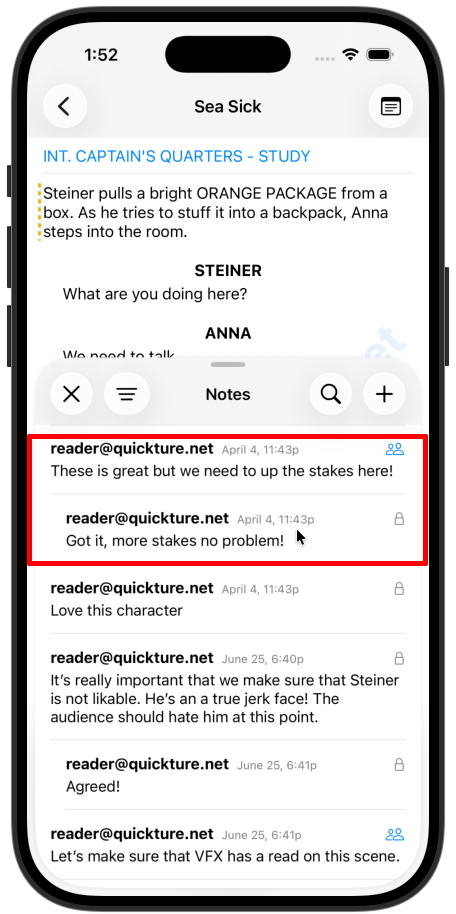
Quickture Reader lets you add notes to your screenplay to make comments or propose revision. Notes are attached to a script. Private notes are only visible to you. Shared notes are visible to everyone with access to script (people in the Group).
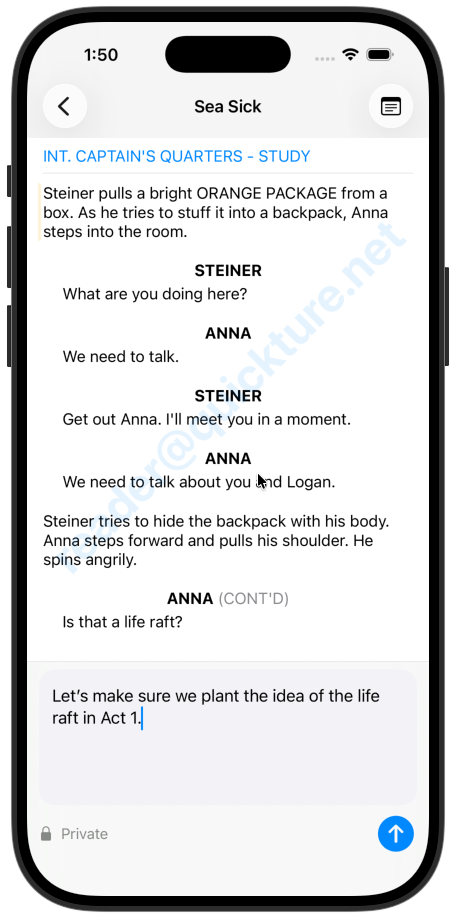
While viewing a screenplay:
Tap and hold or click on any section of the script
Type your note
Choose whether it's Private (only you see it) or Shared (everyone with access to the script in Quickture Reader can see it.)
Save
Notes appear as colored borders on the left side of annotated lines:
Solid border = Shared note
Dashed border = Private note
Badge with number = Multiple threaded notes on that line
Tap the list icon in the header to see all notes in one place. You can search and filter by private or shared.
This works just like Slack, Google Docs, and other software where you can leave notes. You or others can add notes to the thread and the whole conversation will be available in the list view, and indicated by a badge with a number in the screenplay.