Quickture Reader organizes your scripts with the following hierarchy:
Projects
Folders
Scripts
Each level has a purpose, and together they make even large libraries easy to navigate.
Think of it this way: a project groups related work together (a TV series, a feature film, a client), folders organize within that project (episodes, drafts, revisions), and scripts live inside the folders.
Every user has a personal "My Project" by default. Everything inside your personal project is private to you. Admins can also create shared projects tied to specific groups — everyone in the group can see what's in that project, and no one outside the group can. New projects can only be created by admins (see the Groups & Project Access article for more on how that works).
Open the project you want to add a folder to.
Click or tap New Folder, give it a name, and confirm.
On iPhone/iPad/Android: Long-press on any project, folder, or screenplay to get options. From there you can rename it, delete it, or — for scripts — select Move to Folder to move it somewhere else.
On the web: Click the three-dot menu next to any item to access the same options.
From the three-dot menu on a project, admins can add a new folder, manage group access, rename the project, or delete it entirely.
If you've changed voice selections or want to try different processing options, you can re-render a screenplay's audio at any time.
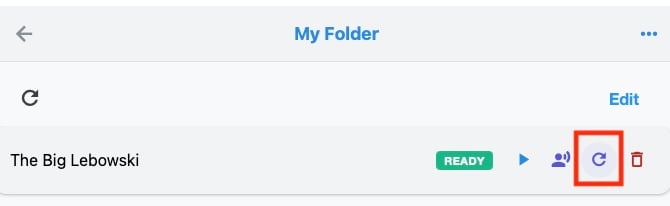
On the web: Click the recycle icon next to the screenplay to kick off a re-render with your current settings.
Long-press the screenplay, select Change Voices, adjust your voices or settings, then confirm to start the re-render.