Access the preferences menu by clicking the menu button at the top right of the app.
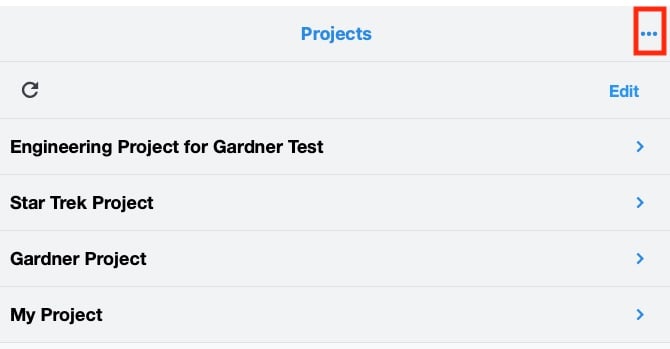
In the Web app, the preferences menu appears as 3 dots in the top right of all the screens.
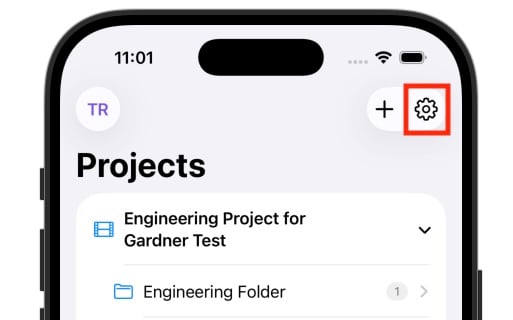
In the iPhone app, the settings menu is represented by a gear icon and is only available on the first screen, the Project List screen.
Switch between light and dark themes, or let the app follow your device's system setting.
Five sizes available (14, 16, 18, 20, 22 points).
Choose from 12 colors accent colors for highlighting and note indicators.
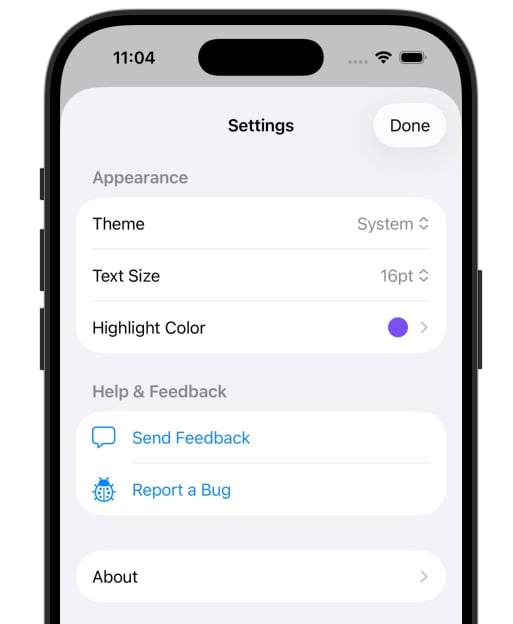
Tap on Help to chat with support or review the Help Center user manual.
Tap Report a Bug to report a bug! This really helps us figure out what is going wrong so please report bugs.
Each screenplay shows a status badge:
Status | What it means |
Uploading | PDF is being read and analyzed |
Awaiting Voice Selection | Ready for you to pick voices |
Processing Audio | Generating the performance |
Audio Ready | Done! Tap to listen |
Processing Transcription | Adding timing data for sync |
Complete | Fully processed with timing |
Failed | Something went wrong (see Troubleshooting) |